
Apps for your trade
Restaurant
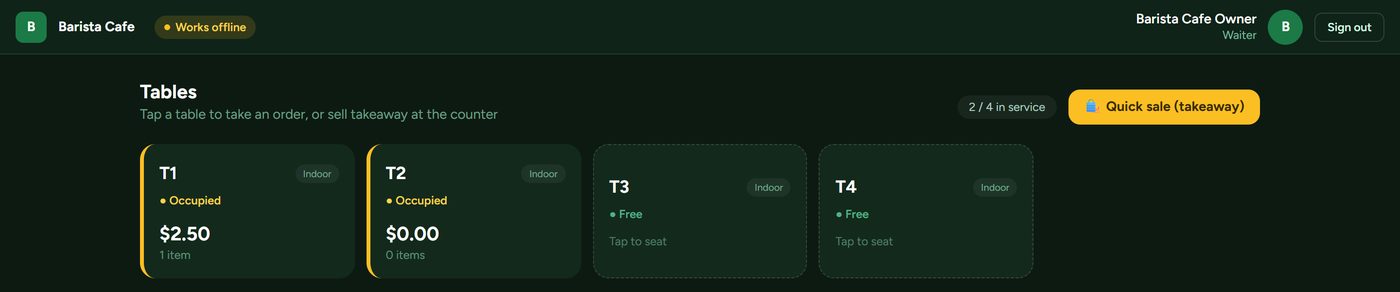
Order at the table, send it to the kitchen, and settle the bill when the customer is ready.
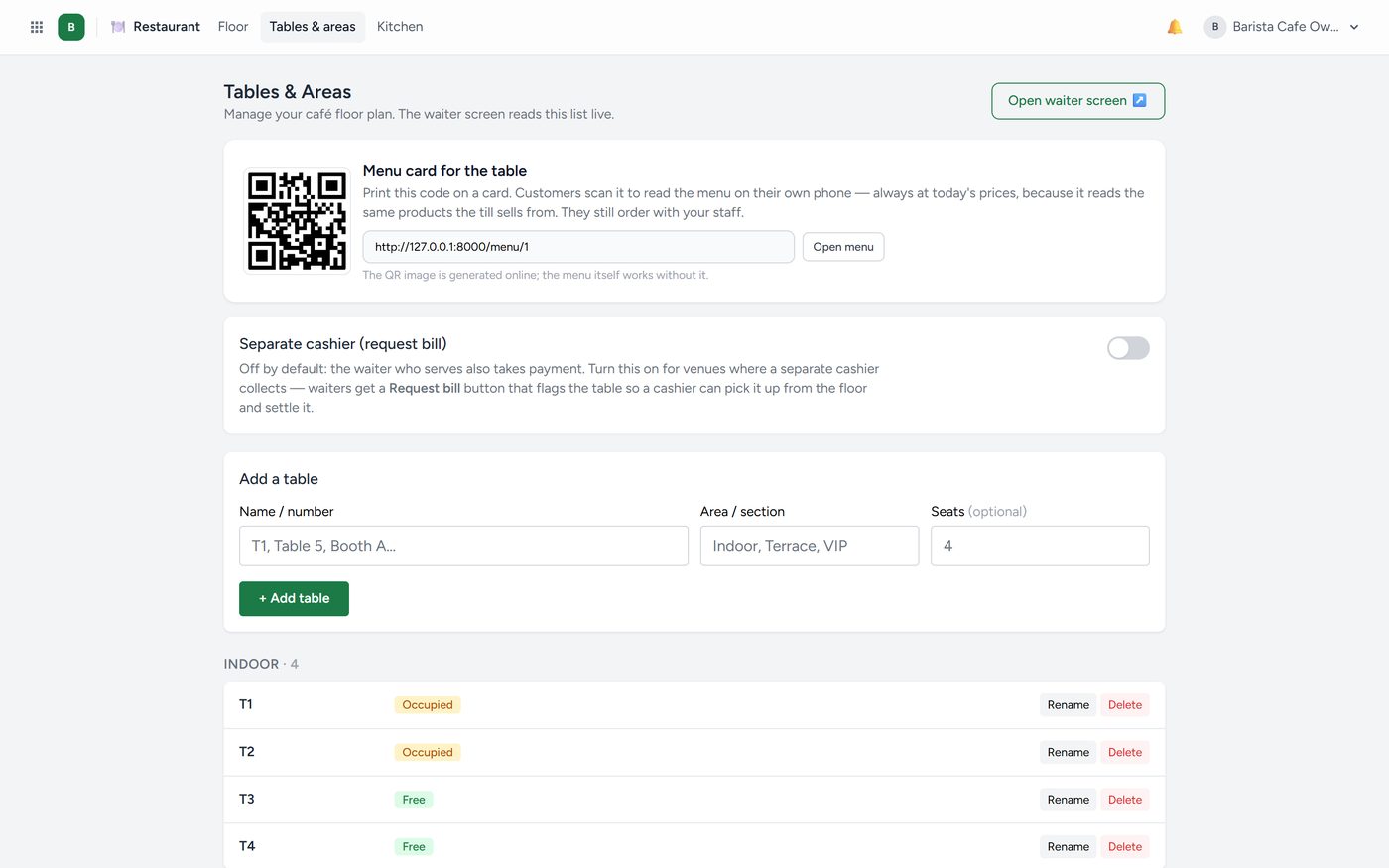
Lay out your floor by area and table so a waiter taps the table rather than remembering a number. Each table shows whether it is free, occupied, or waiting to pay.
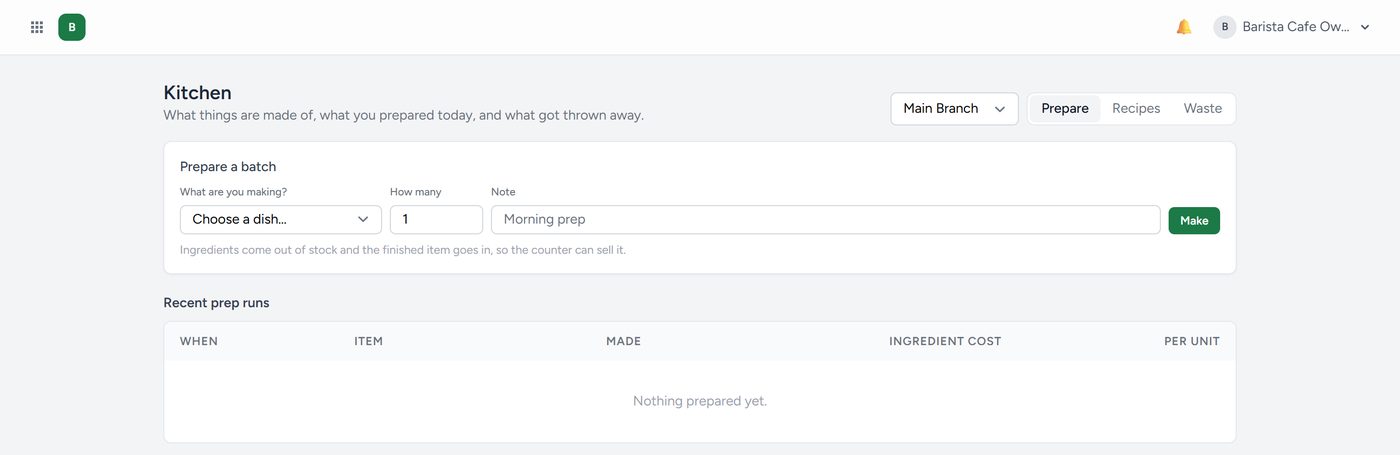
Production is for a kitchen or café that makes things: a cup of coffee consumes beans, milk and a cup. Record the recipe once and selling the coffee takes those ingredients out of stock automatically.
QR menu — print a QR code for each table and customers read the menu on their own phone.
"Add with it?", self-order and till options
- Suggestions: on a product card, open Sales → Suggest with it and choose what to offer with it (fries with a burger). The till, the restaurant screen, the kiosk, the QR menu and your online shop then offer them when that product goes in.
- Restaurant → Self-order settings: add pictures for the kiosk's welcome slideshow, choose the guests' languages (English, Soomaali, Kiswahili), let guests pay now by M-Pesa on the kiosk and the QR menu, and show category pictures. Add the pictures in Products → Categories.
- Settings → POS layout → What each till shows: choose the categories each till's buttons show, for example drinks at the bar till.
Your own kitchen stages, and a screen for your customers
On the kitchen display, Stages (owners and managers) lets you name the columns yourself, for example To cook › Grill › Plating › Ready. Give each stage a colour and the minutes after which a ticket turns red. Cooks tap a ticket on to the next stage.
Customer screen opens a page for a TV by the counter. It shows the orders being prepared and the ones ready to collect, by their number, in your colours, with a chime.
Delivering your own online orders
Customers order food on your website and you deliver it yourself, with no Glovo or Uber Eats.
- The customer gets an SMS and a WhatsApp message at every step, each with a link to follow the order. While the order is on the way, the page shows the rider on a map. Once it has arrived, the customer can rate it and order the same again.
- Your riders sign in with the Driver role and open Restaurant → Deliveries on their phone. They see the address with directions, can call or WhatsApp the customer, and tap Picked up and then Delivered, ticking the cash they collected. The phone shares where they are only while a delivery is on the way.
- Price delivery by distance: in Online Store → Settings → Delivery, choose By distance and set a starting fee, a price per km and a maximum distance. Customers tap Use my location at checkout.
- When the kitchen is busy: on the floor, set At most … orders per … min. Your website then says the kitchen is full and opens again by itself.
Guests book a table online
Turn it on in Restaurant → Reservations → Online booking. Set:
- the hours guests can book, for example lunch and dinner;
- how long a table is held, how far ahead guests can book and how much notice you need;
- the largest party, closing days, an optional deposit and a question for every guest;
- which tables can be booked.
Share your booking link with Copy or Share on WhatsApp, or put a Book a table section on your website.
Guests choose the number of people, a day and a free time, and can choose a table. Each guest gets a message by SMS, WhatsApp and email, a reminder the day before, and a link to change or cancel. Kaydro never gives two guests the same table.
In Reservations, online bookings carry an ONLINE badge. A booking that needs your OK, because the room is nearly full or it has a deposit, waits under Needs you with Confirm and Decline. Timeline shows the day with one row per table. Click a booking to give it a table, confirm it, seat the guests or cancel it.