
Schools
Fees
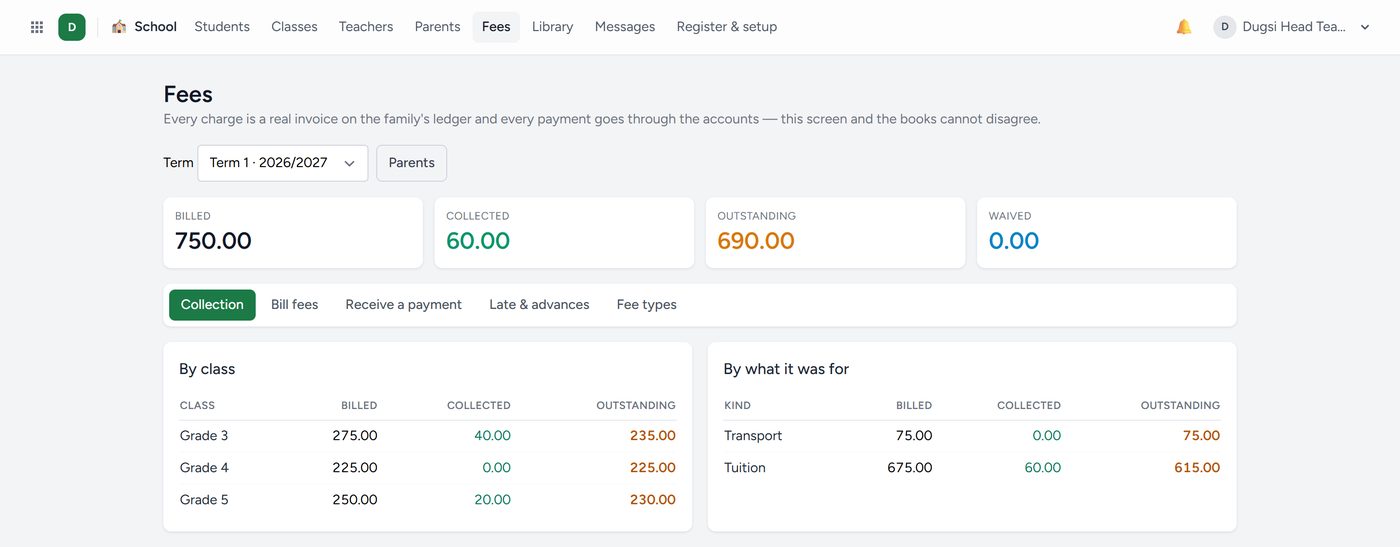
Under School → Fees → Fee setup you say whether the school bills by term, by month, or as each class is set. Extra charges start ready to price: Registration, Exam, ID card, Food, Books, Uniform and School bus.
To bill a term:
- Open Fees → Bill students.
- Choose what to bill: the term's fee, the month's fee or a charge.
- Choose one class or many.
- Untick anyone who should not be billed, then bill the rest.
A term or month a child has already been billed for shows as billed and cannot be ticked again. A charge such as an exam fee can be billed more than once.
To take a payment, open Fees → Receive a payment (or the quick action Receive fees) and find the student by name, ID or guardian phone. You see the family, its children, what is open and what it owes. The payment settles the oldest fees first and has a receipt to print.
Payments from a bank or mobile money statement
Under Fees → Payments received upload the statement (CSV, Excel or PDF). Kaydro matches each money-in line to a family by student ID, then phone, then a payer name it has seen before, then the child's or guardian's name. A line that could be two families is left for you. Tick the lines that are right and save: each becomes an ordinary payment. A transaction is only taken once, so uploading the same statement twice does no harm. This works for M-Pesa and any wallet, with no connection to set up.
What families owe
- Balance brought forward: what a family owed before Kaydro, from the student import. It is shown on its own card, not counted as this term's billing.
- Fee statement: one page per family, from the student or family file: brought forward, this term's charges, payments and the balance.
- Invoices tab: every fee invoice with totals; the Billed, Collected, Outstanding and Waived cards open it.
Each fee goes to its own income line in the books: tuition, registration and exam fees, school transport, uniforms and books, or canteen and meals.