
Schools
Admissions
Applications come in two ways: from the public form, which needs no account and is linked as Apply on the school's website, or from the office with New application. Every application also appears on the CRM pipeline at the Application stage.
To take a child from application to student:
- Open School → Admissions and the application. Opening it marks it Under review.
- Read the whole form, then choose what is the school's to decide: the class, and a bus route or a dormitory if you have them.
- Press Accept. The child goes on the books with no ID yet, and the family owes the registration fee.
- Take the registration fee in the same window, with a reference.
- Press Approve and enrol. The student gets their ID and is active.
If the head agrees the fee can wait, Enrol, fee to follow enrols the child with the fee left on the family's account. Not accepted closes the application.
Everything the family wrote carries onto the student: name, date of birth, gender, address, photo, allergies, conditions and the emergency contact. The other answers sit on the student's Personal tab. The second parent's phone goes on the family, so a payment from that phone is matched too. Nothing is typed twice.
The form
The form has the student, the place applied for (class, starting term, day or boarding, bus), previous school, parent or guardian, second parent, health and emergency, anything else, documents and the declaration. A family can attach a photo, the birth certificate and the last report card. The papers are private: only the owner and managers open them. The photo becomes the student's.
Under Admissions → Settings you can close applications, name the registration fee, set what student IDs start with, and under What the form asks untick questions you do not need (for example religion or the second parent). An unticked question also leaves the printed form.
Blank form prints the application on paper for families who apply at the office.
Registering a student by hand
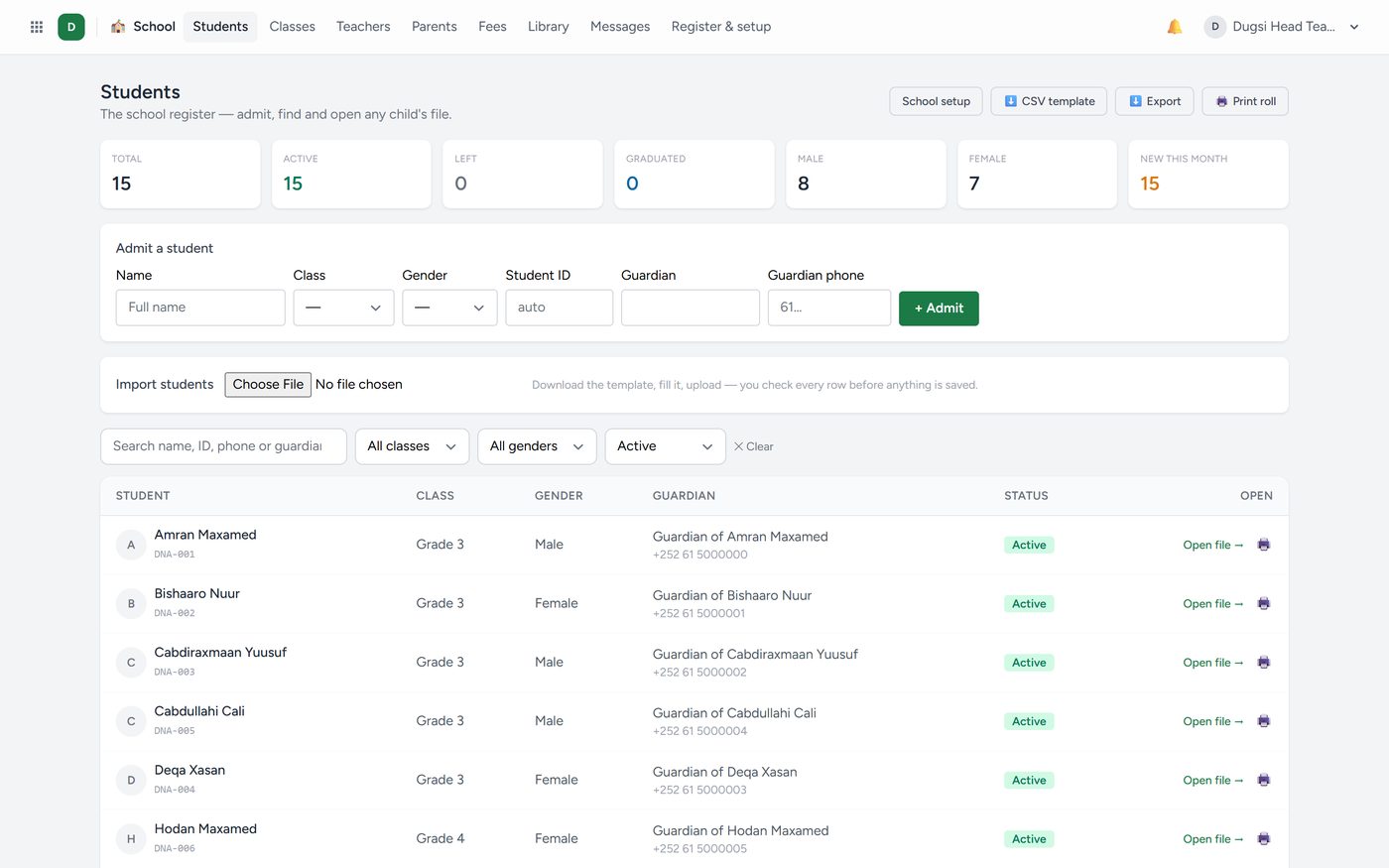
For a child you take at the office without an application, use Students → Register a student. It asks the same questions step by step, then the school details: class, student ID (given for you if left empty), admission date, scholarship, bus and dormitory, and whether to charge the registration fee. The student shows under Admissions as enrolled.
Every student gets an ID: the school's prefix and the next number. A student with no guardian phone still gets a family contact, so their fees have somewhere to go.